Screen comfort tips are most useful when they reduce the need to squint, lean forward or stare at one distance for long periods. Start with the way you use the screen, not with a product promising to solve every problem. Simple changes to text size, glare and breaks may make work more comfortable. Persistent pain, blurred vision or other eye symptoms need professional assessment.
Make the task easier to see
Open a document you use regularly and notice whether you lean toward it. Increase text size or zoom before moving closer. Position the screen so reflections are less distracting, and adjust lighting to suit the room. A screen that looks comfortable in daylight may need a different setting in the evening. Avoid using brightness as the only adjustment.
NEI suggests regularly looking away from close work, including the 20-20-20 reminder: every 20 minutes, look about 20 feet away for 20 seconds.
Background guidance: NEI: Keep your eyes healthy; CDC: Adult activity guidelines.
Four practical steps
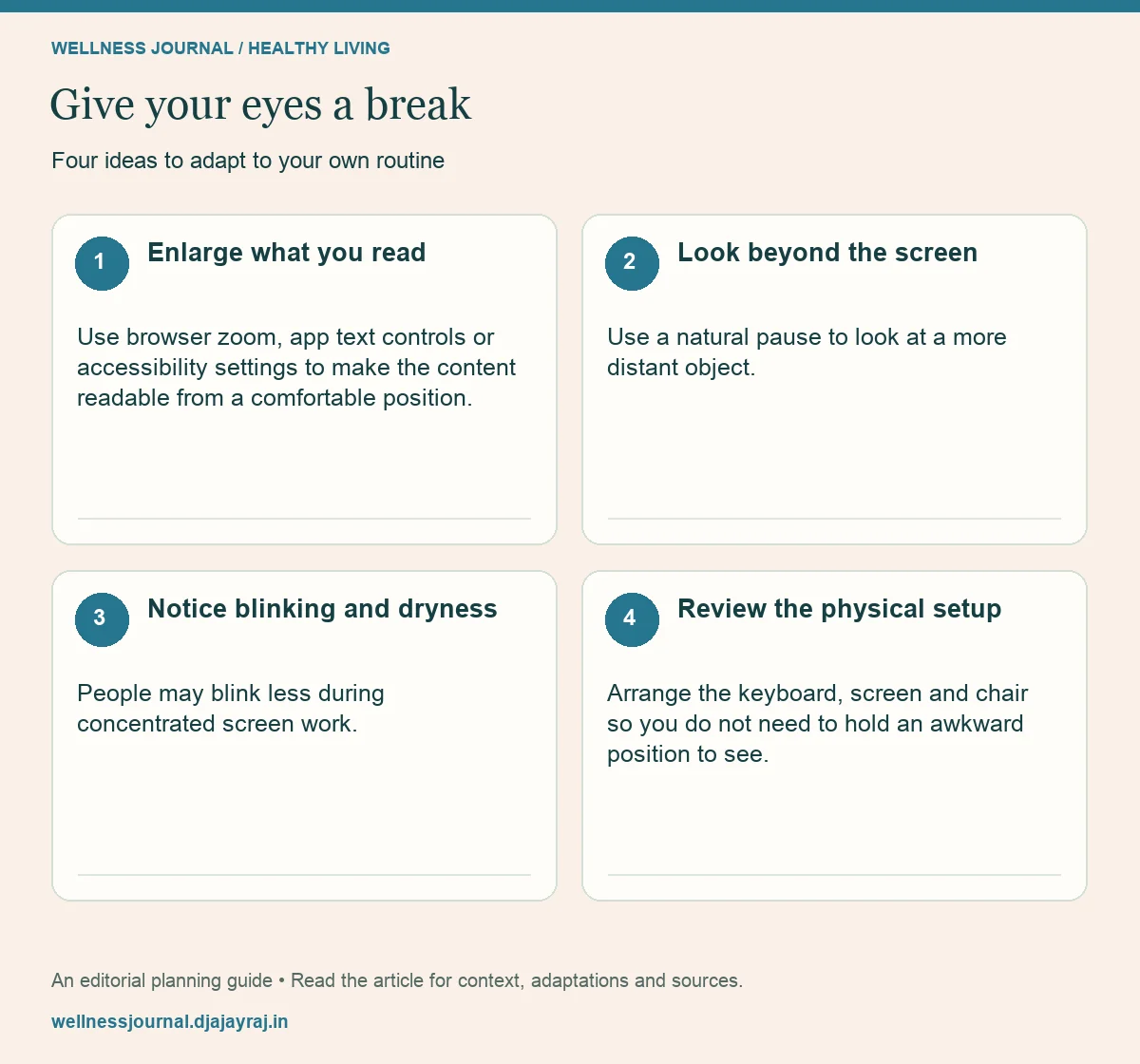
Enlarge what you read
Use browser zoom, app text controls or accessibility settings to make the content readable from a comfortable position. Check that important controls remain visible. The right size is the one you can use comfortably, not the default chosen by the software.
Look beyond the screen
Use a natural pause to look at a more distant object. The 20-20-20 reminder can be a helpful cue, but it is not a treatment or a guarantee against eye problems. Avoid replacing every screen break with phone scrolling.
Notice blinking and dryness
People may blink less during concentrated screen work. Take comfortable pauses and discuss persistent dryness with an eye-care professional. Do not assume that any drops or supplements advertised online are appropriate for you.
Review the physical setup
Arrange the keyboard, screen and chair so you do not need to hold an awkward position to see. Change position comfortably through the day. If you use specialist equipment or have a disability, seek an ergonomic setup that fits your needs.
Match the adjustment to the problem
| What you notice | First adjustment | When to get help |
|---|---|---|
| Leaning in to read | Increase text size | Persistent blurred vision |
| Reflections on screen | Change light or screen angle | Symptoms continue |
| Long unbroken close work | Look away at intervals | Eye pain or visual changes |
| Dry or irritated eyes | Take comfortable breaks | Ongoing dryness or redness |
Make it work for you
Use reminders that do not interrupt every thought
A subtle timer, the end of a paragraph or a meeting transition can cue a pause. Choose one method and see whether it fits the work. Too many alerts can become background noise. The aim is to create opportunities to change focus and position, not to make you anxious about missing a precisely timed break.
For a laptop in a temporary space
Make the text readable and reduce glare first. If you raise the laptop, consider whether the keyboard position remains comfortable; a separate keyboard may be useful. Avoid balancing equipment on an unstable stack.
Quick checklist
- Use readable text size.
- Reduce glare where practical.
- Seek urgent care for sudden vision loss or severe eye symptoms.
Common questions
Do screen breaks replace eye exams?
No. An examination can identify issues that a desk adjustment cannot. Follow advice appropriate to your age, symptoms and health.
Do I need special glasses for every screen?
Not automatically. An eye-care professional can advise whether a prescription or another intervention fits your situation.